Paste a finished newsletter, choose a style and starting image count, and review the proposed ideas before generation. This case uses one opening image and two body images; three is an example, not a requirement.
Choose a ready-made style and let Zyncli propose image ideas from your draft. Planning and generation use credits. Download the results and upload them to your newsletter editor yourself.
Illustrate my newsletterSee the images inside a newsletter
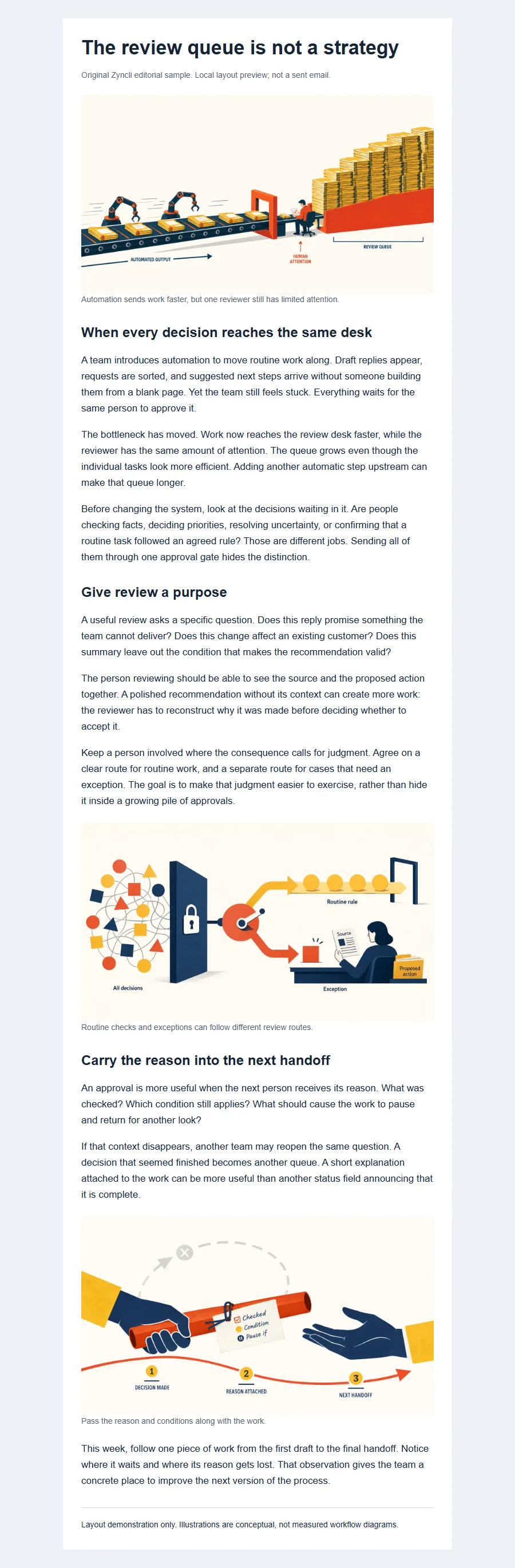
The sample issue, The review queue is not a strategy, is about work waiting for approval. It contains three sections: a bottleneck created by one review desk, separate routes for routine checks and exceptions, and a handoff that keeps the reason for a decision attached.
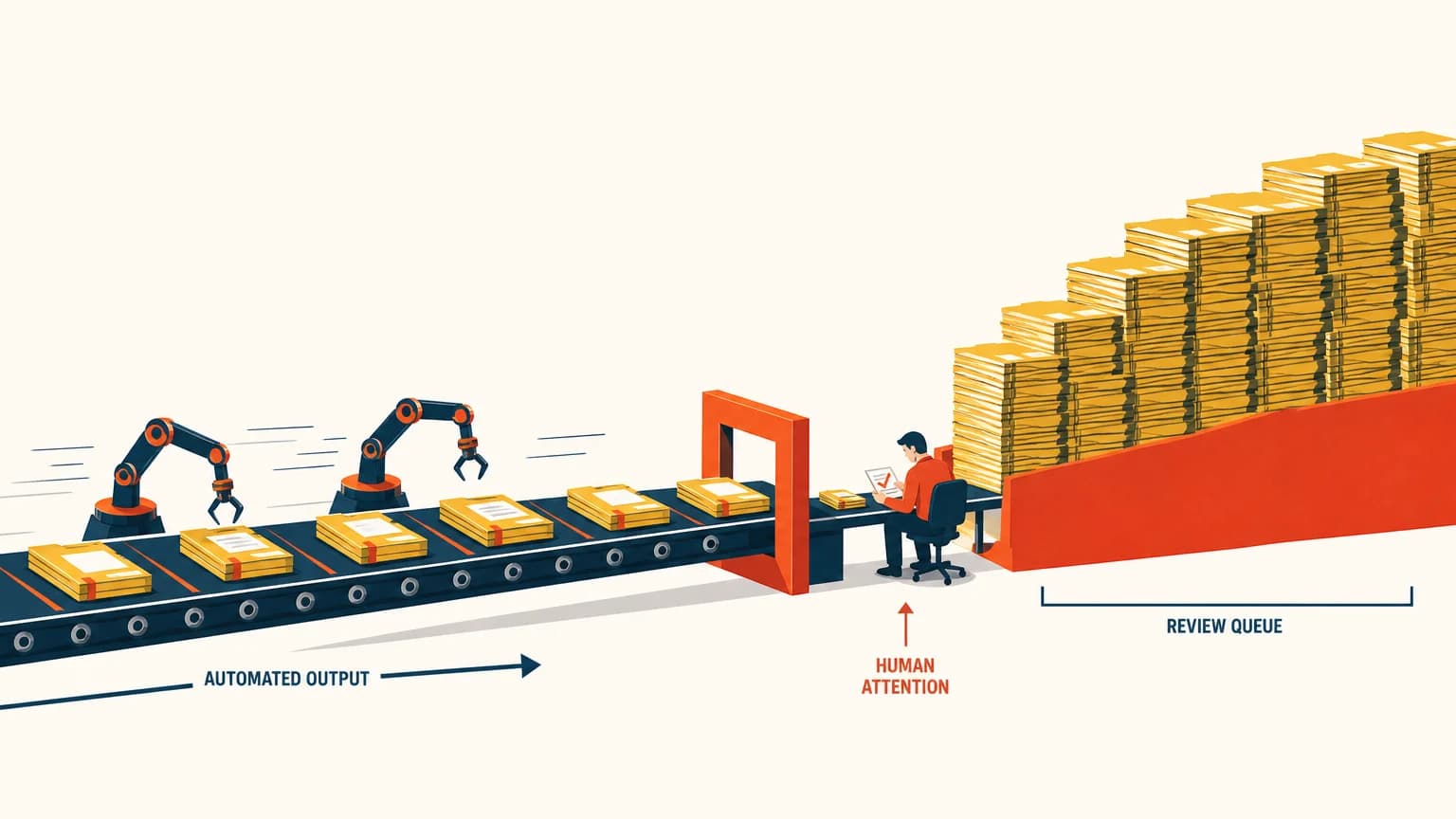
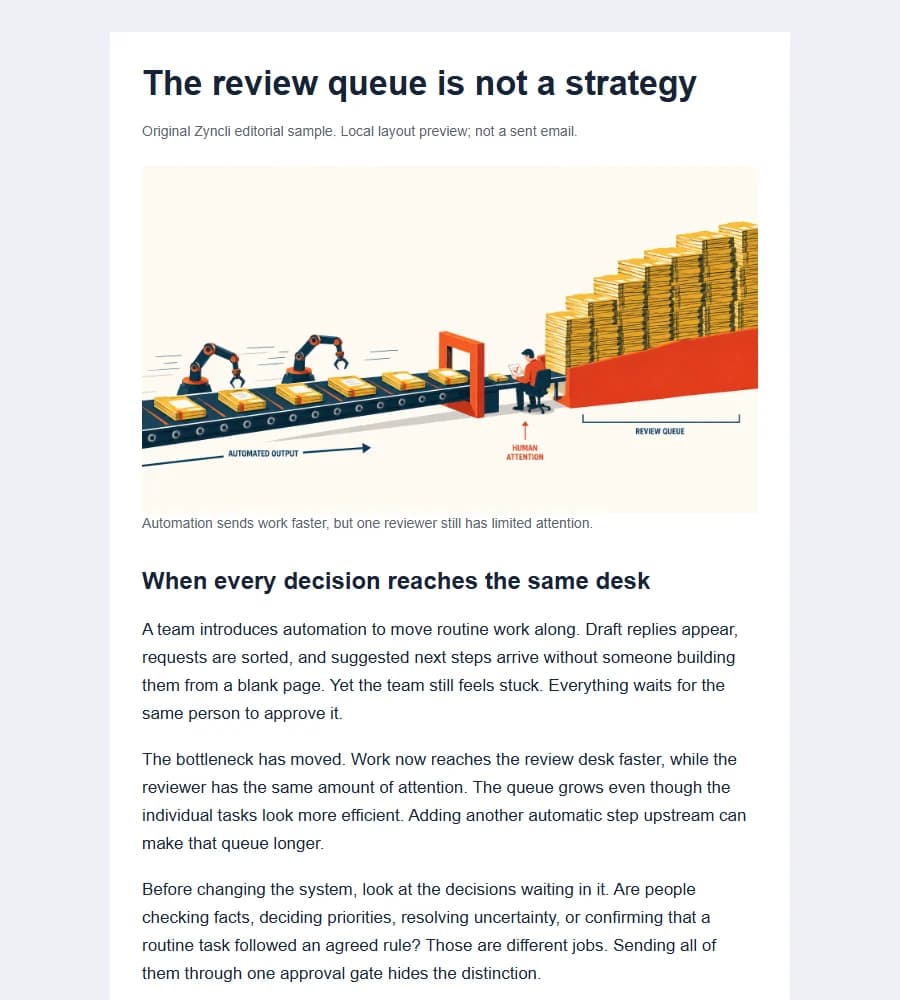
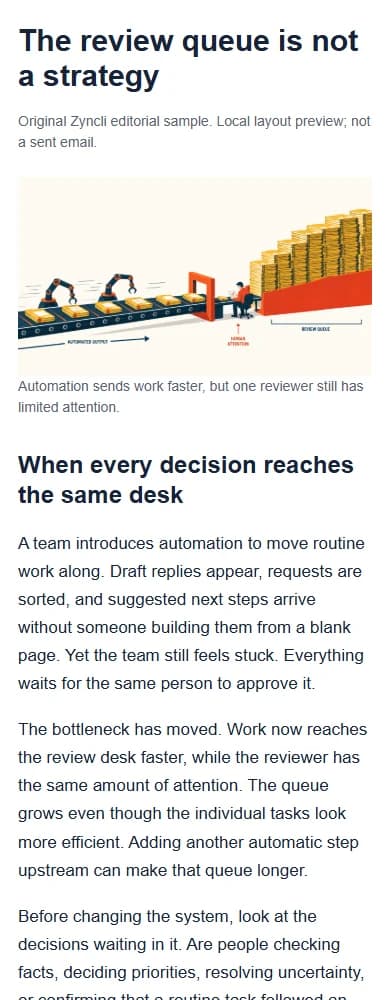
We used one Signal Editorial style across three images. The opening image introduces the bottleneck. Two body images accompany the proposed review routes and the final handoff. The opening previews are below; the linked complete layouts contain the full original text.
This is a Zyncli editorial demonstration, not a customer campaign. The previews are local browser layouts, not emails sent through a newsletter platform or tests of email-client compatibility.

The starting point was finished writing
Here is the passage behind the opening image:
The bottleneck has moved. Work now reaches the review desk faster, while the reviewer has the same amount of attention. The queue grows even though the individual tasks look more efficient. Adding another automatic step upstream can make that queue longer.
A generic office photograph would show the setting, but not this argument. The generated image uses a conveyor, one reviewer, and accumulating packets. It is a conceptual illustration, not a diagram of an observed company process.
For this case, we supplied the full draft, chose Signal Editorial, and requested three images. The planner proposed the ideas and their passages. You do not need to write a separate prompt for each paragraph. For the app steps, see the Zyncli article-to-images walkthrough.
Two body images cover different parts of the issue
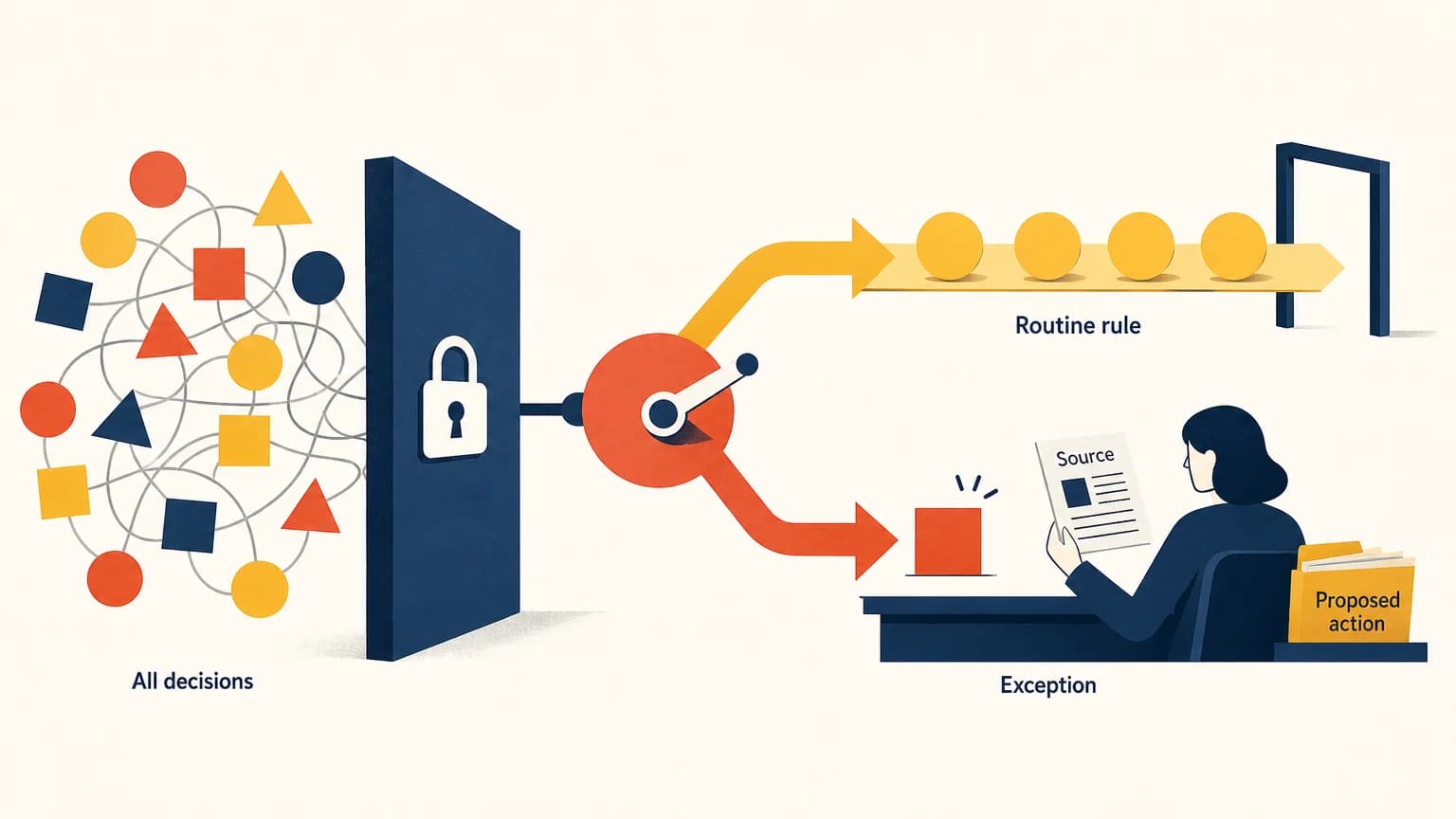
The second image separates routine decisions from exceptions: one path continues through an open gate, while the other reaches a person reviewing the source and proposed action. We placed it after the paragraph explaining those two routes.
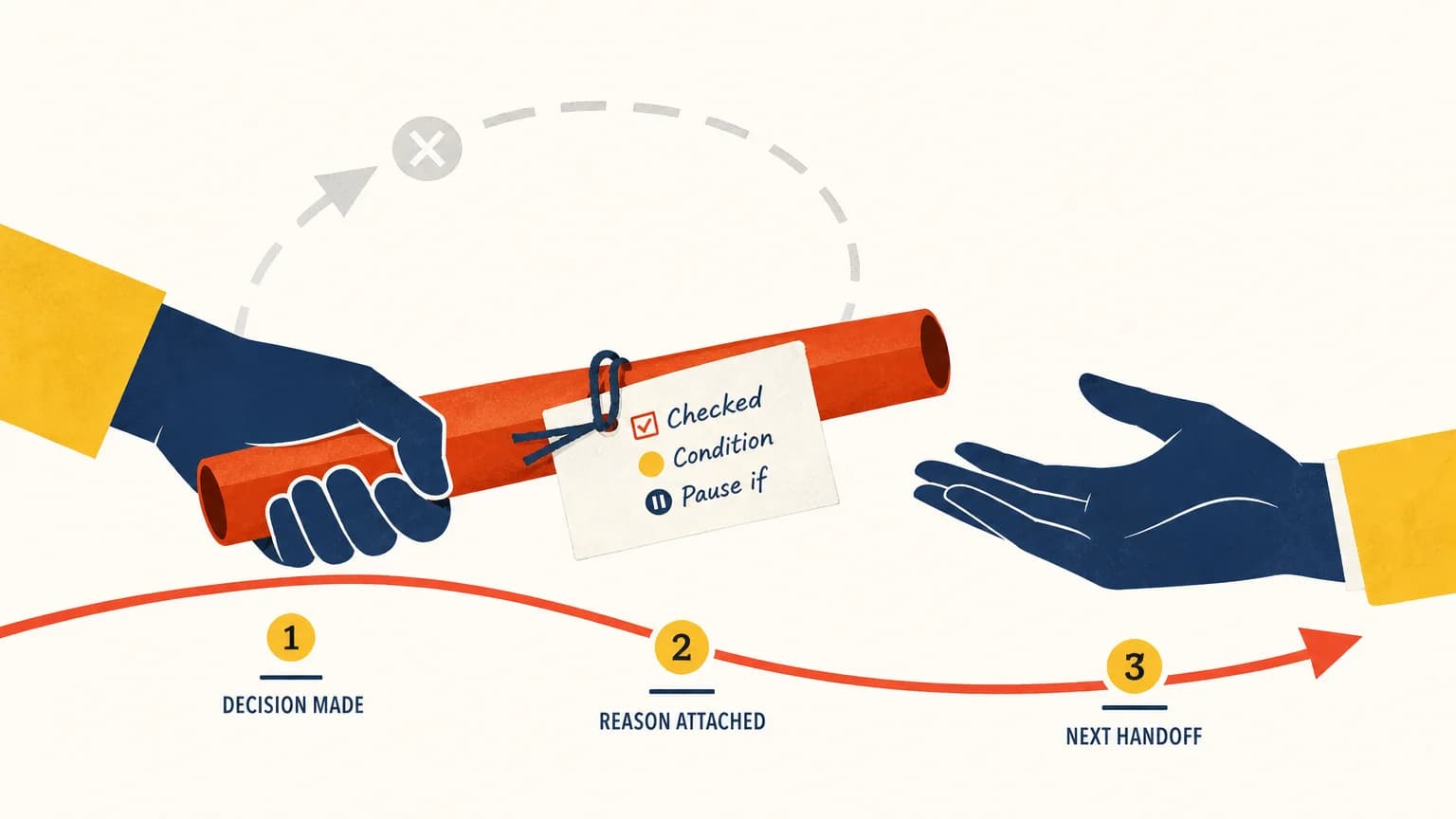
The third image uses a relay baton with an attached note. It belongs beside the section about keeping the reason and conditions available during a handoff. Repeating the conveyor here would have repeated the problem instead of showing the next idea.
What we checked before placing the images
The planner suggested a location for the second image, but named a section that did not contain its quoted sentence. We corrected the placement to the paragraph about routine work and exceptions. Review the suggested passage rather than treating a placement label as final.
We reused the first generated image as the newsletter opening image; we did not generate a separate fourth cover. All three outputs were 1536 by 864 pixels and exported as WebP. The previews keep each full image uncropped.
The palette matches across the set, but the images have different compositions. On mobile, embedded labels become small. Keep the main explanation and useful captions as live text in the newsletter, rather than asking an image to carry essential instructions.
Before uploading, check which formats your newsletter editor accepts and whether it changes the crop or file size. Zyncli provides downloadable images; this demonstration does not establish a direct publishing integration.
How this demonstration was produced
These are real outputs from Zyncli's planning and image-generation pipeline, using our original sample and Signal Editorial style. This is an editorial test run, not a customer project or a recorded signed-in app session.
Planning and generation both use credits in the app. Three medium-quality images currently require six generation credits, plus planning and any retries. This test did not debit a product account, so those figures describe the product rules, not an account receipt. One generation attempt failed and was retried.
We did not measure time saved, opening rates, click rates, or reader comprehension. The evidence here is the source text, the generated set, the corrected placement, and the local layouts.
Try it with your own newsletter draft
This approach suits commentary and educational issues where images can express an idea. It does not replace actual product screenshots, charts based on your data, or photographs needed to document a real person or event.
Bring your finished draft, choose one style, and review the proposed images before generating. You can compare five editorial illustration styles if you want another look. You do not need to complete a brief template or brand worksheet to start.
Bring your next issue
Get images for the newsletter you already wrote.
Choose a ready-made style and let Zyncli propose image ideas from your draft. Planning and generation use credits. Download the results and upload them to your newsletter editor yourself.
Illustrate my newsletter